Sync Your NEPTUN Calendar to Your Phone’s Home Screen
Follow this tutorial to display your class schedule directly on your phone’s home screen using a calendar widget.
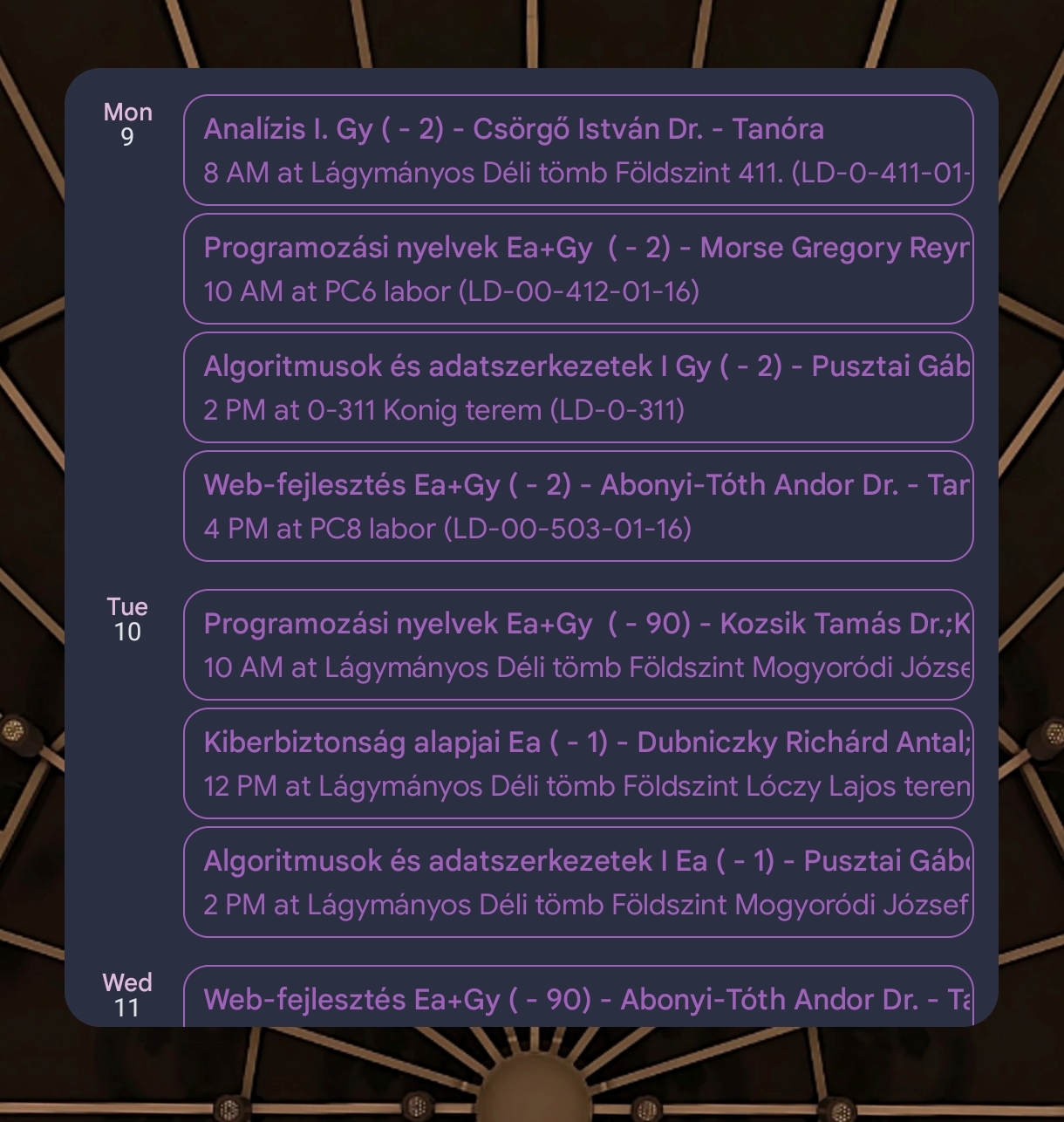
Steps
1. Get Your Calendar Subscription Link
- Log into Neptun. (If needed, refer to NEPTUN 5 Guides for help.)
- Go to Calendar
- Click Calendar Management > Copy Subscription Link.
2. Install ICSX5
Download and install the ICSX5 app from the official release:
- GitHub Releases page:
https://github.com/bitfireAT/icsx5/releases - Direct APK link (v2.4.3):
https://github.com/bitfireAT/icsx5/releases/download/v2.4.3/icsx5-92-2.4.3-standard-release.apk
3. Configure ICSX5
After installation:
- Allow access to your calendar.
- Disable battery restrictions for the app.
- Ensure permissions are not paused when the app is inactive.
4. Add Your Calendar
- Open ICSX5.
- Tap the ”+” button.
- Select Subscribe to URL > Paste Subscription Link.
- Paste the Subscription Link you copied from Neptun.
- Tap Save.
5. Set Up Google Calendar
- Open Google Calendar.
- Go to Settings > Manage Accounts.
- Select Non-Google Accounts > Calendar Subscriptions.
- Turn the subscription On.
6. Add Widget to Home Screen
- Long-press your home screen and select Widgets.
- Find the Google Calendar widget.
- Choose your preferred widget size and style.
- Place it on your home screen.
Now your schedule will always be visible right from your home screen.